


Ruddr is now available on the Microsoft Marketplace. If your firm runs on Microsoft 365, your team can now ask Copilot about their Ruddr work in the same place they already chat, email, and meet.
No more switching tabs to check a project's hours or hunting through reports for last month's numbers. Ask Copilot in plain English, and it answers from your Ruddr workspace.
Ruddr, inside Copilot
The Marketplace app connects Microsoft 365 Copilot to your Ruddr workspace. A Microsoft 365 administrator installs it once for the whole organization. After that, each team member links their own Ruddr account with a few clicks.
Once connected, Ruddr works anywhere you use Copilot chat: on the web, in Microsoft Teams, and in Outlook. It's the same Ruddr data your team already relies on, available where the conversation is already happening.
Ruddr in Copilot joins our existing connectors for Claude and ChatGPT, so whichever AI assistant your firm has chosen, your Ruddr data can come along.
What you can ask
Copilot can draw on the full picture of your services business: clients, projects, time, expenses, billing, pipeline, and members. A few examples:
- "Using Ruddr, list my active projects."
- "How many hours has the team logged on the Acme website redesign this month?"
- "Which projects are over budget?"
- "What was our revenue by client last quarter?"
- "Show me utilization by member for the past four weeks."
- "Which invoices are still outstanding?"
- "Build a business plan for next year and include specific delivery areas of improvement."
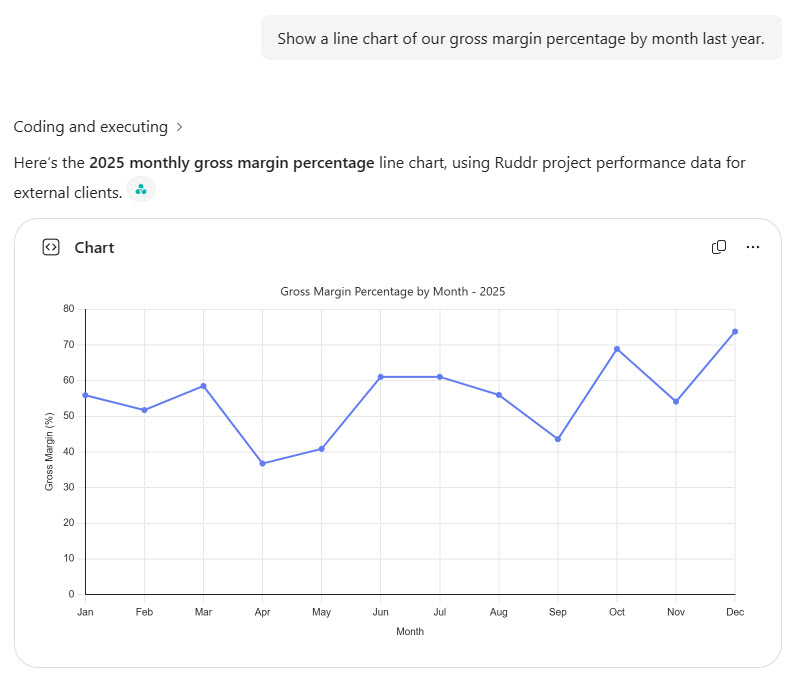
It's handy before a client call, in the middle of a Teams thread about staffing, or while drafting a status update in Outlook. Ask a question, get the answer, and keep working.
Copilot answers questions today. Actions that change data, like logging time, will arrive once Microsoft finishes rolling out support for them, with no new setup needed on your end.
Your permissions come with you
Installing the app doesn't open your Ruddr data to anyone. Each person connects their own account, signs in to Ruddr, and approves the connection themselves.
From then on, Copilot acts as that person. It sees exactly what their Ruddr security role allows, nothing more. A project manager sees their projects; a finance lead sees billing. People in your Microsoft 365 organization who aren't members of your Ruddr workspace can't connect at all.
You stay in control, too. Admins decide who gets access by turning on the Ruddr Assistant for each member, and anyone can revoke a connection at any time from the Connected Apps page in their Ruddr profile.
Getting started
Setup takes a few minutes and needs no API keys or passwords.
- Install the app. A Microsoft 365 administrator opens the Ruddr listing on the Microsoft Marketplace, selects Get it now, and deploys it to everyone, a specific group, or just themselves to try it out first.
- Enable the Ruddr Assistant. In Ruddr, make sure the Ruddr Assistant feature is on for your workspace and for each member who will use Copilot.
- Connect. Each member opens a Copilot chat, selects + and then Change data sources, finds Ruddr, and selects Connect. They sign in to Ruddr, pick their workspace, and select Authorize.
That's it. Each person using Ruddr in Copilot needs a Microsoft 365 Copilot license, since Microsoft offers connectors only with that license.
For step-by-step instructions with screenshots, plus a custom connector option for organizations that prefer to configure it themselves, see our help center article, Connect Microsoft 365 Copilot to Ruddr.
We can't wait to hear what you ask. Have feedback or ideas for what Ruddr in Copilot should do next? Let us know.

